
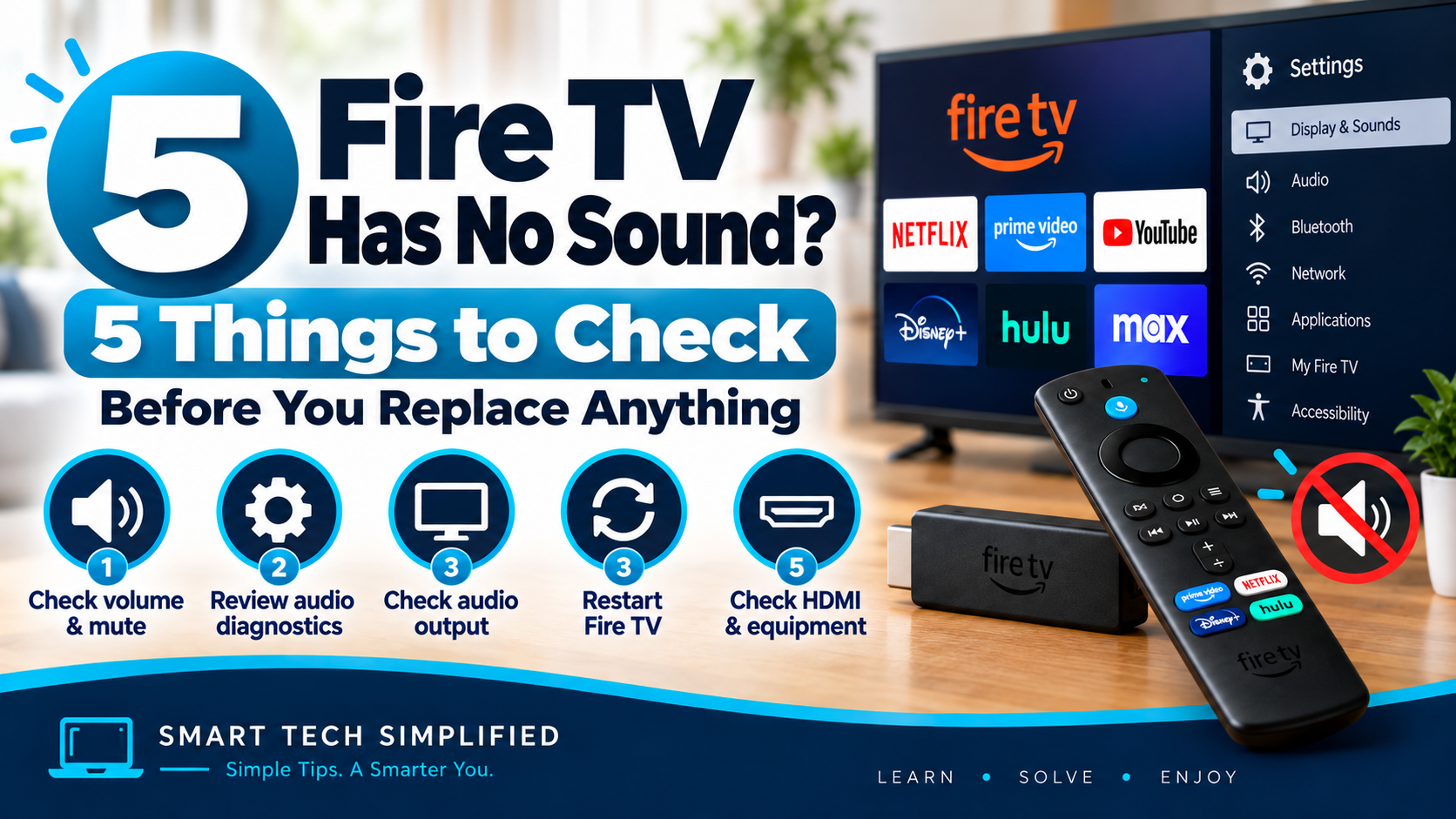
If your Fire TV has picture but no sound, the problem may be something simple such as muted audio, the wrong output setting, a connected soundbar or receiver, or a temporary Fire TV glitch. Before changing a lot of settings, work through these five checks one at a time. Amazon’s current Fire TV troubleshooting guidance recommends checking audio settings, using Audio and Video Diagnostics where supported, and restarting the device if the problem continues.
1. Check the Volume and Mute Settings
Start with the basics. Make sure your TV, soundbar, or A/V receiver isn’t muted and raise the volume. If you use external speakers, confirm that the correct device is turned on and that its input is set correctly. Testing the TV’s built-in speakers can also help determine whether the problem is with Fire TV or with your external audio equipment. Amazon specifically recommends checking mute/volume and the selected audio output when troubleshooting Fire TV sound problems.
2. Run Audio and Video Diagnostics
On supported Fire TV devices, go to Settings → Display & Sounds → Audio and Video Diagnostics → Troubleshoot Audio/Video Issues → No Audio. Follow the on-screen recommendations. Amazon notes that this tool isn’t available on every Fire TV device, but where supported it can help identify problems with connected equipment and audio formats.
3. Check the Audio Output Settings
If you use your TV’s built-in speakers, make sure they’re turned on. On compatible Fire TV Smart TVs, go to Settings → Display & Sounds → Audio Output and confirm TV Speakers is On. If you use a soundbar or A/V receiver, check that the correct external audio output is selected and that the connected device is on the right input.
4. Restart Your Fire TV
Restarting can clear temporary audio glitches without deleting your apps or settings. Go to Settings → My Fire TV or Device & Software → Restart. You can also unplug the Fire TV from power for at least 30 seconds, then reconnect it.
5. Check Your HDMI and Audio Equipment
If you use a soundbar, A/V receiver, HDMI switch, or other audio equipment, make sure everything is powered on and set to the correct input. Check the TV’s audio output setting and confirm that the soundbar or receiver is selected when appropriate. If the problem continues, temporarily connect the Fire TV directly to the television to help determine whether another device in the HDMI chain is causing the audio problem.
Bottom Line
If your Fire TV has picture but no sound, start with the simple checks: volume and mute, Audio and Video Diagnostics when available, audio output settings, a restart, and the HDMI/audio equipment connected to your TV. Working through those steps one at a time can help identify whether the problem is with Fire TV itself or another device in your setup.
Considering a replacement after troubleshooting? Read our Fire TV Stick 4K Plus vs 4K Max comparison to explore the differences.
Looking for more Fire TV help? Explore our Fire TV & Streaming guides for troubleshooting, setup tips, comparisons, and beginner-friendly advice.
Leave a Reply