
Disclosure: This post contains affiliate links. As an Amazon Associate I earn from qualifying purchases.
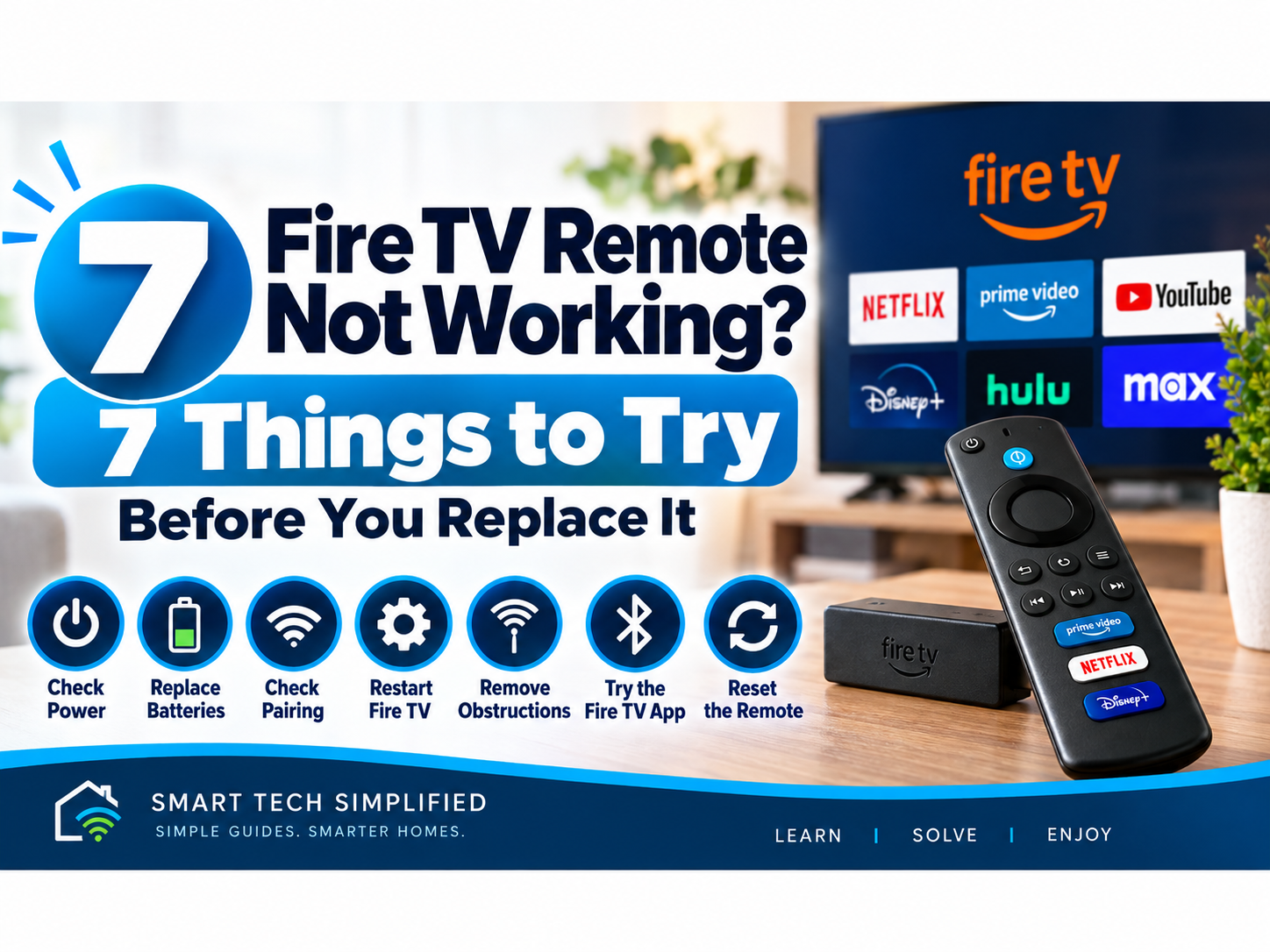
If your Fire TV remote isn’t working, you may not need to replace it. Weak batteries, a lost connection, a temporary Fire TV glitch, or a remote that needs to be reset can all cause problems. Try these seven fixes one at a time before buying a new remote.
1. Replace the Batteries
Start with a fresh pair of AAA alkaline batteries, even if the batteries currently in the remote seem fairly new. Weak batteries can cause delayed responses, intermittent button presses, or prevent the remote from connecting properly. Make sure the batteries are inserted in the correct direction before testing the remote again. Amazon recommends fresh AAA alkaline batteries when troubleshooting Fire TV remotes.
2. Try Pairing the Remote Again
Move within about 10 feet of your Fire TV and press and hold the Home button for about 10 seconds. Fire TV remotes normally pair automatically, but repeating the pairing process can restore the connection if the remote has stopped responding.
3. Restart Your Fire TV
A temporary Fire TV glitch can sometimes make the remote appear disconnected. Unplug the Fire TV device from power, wait at least five seconds, then plug it back in and let it finish starting up. After the Home screen appears, try the remote again. Amazon includes restarting the Fire TV device as a troubleshooting step when a remote won’t connect.
4. Try the Remote Troubleshooting Mode
Some Fire TV remotes have a built-in troubleshooting mode that uses the LED light to help identify the problem. Press the Alexa Voice button and look for the LED at the top of the remote. If it flashes, troubleshooting mode is supported. To activate it, press and hold the Rewind and Right buttons together for three seconds, then press the Menu button. Press any button on the remote and watch the LED color for clues such as a low battery, pairing problem, or remote error.
5. Reset the Fire TV Remote
If pairing and restarting don’t work, resetting the remote may help. For most Fire TV remotes, unplug the Fire TV from power and HDMI and wait 60 seconds. Then press and hold the Left, Menu, and Back buttons together for 12 seconds. Release the buttons, wait five seconds, remove the batteries, reconnect the Fire TV, and put the batteries back in. Press the Home button to pair the remote again. Some older Fire TV remotes use a different reset procedure, so check Amazon’s instructions for your specific model if these steps don’t match your remote.
6. Use the Fire TV App as a Temporary Remote
If the physical remote still isn’t working, you can use the Fire TV app on a compatible phone or tablet as a temporary remote. Make sure the mobile device is connected to the same Wi-Fi network as your Fire TV, open the Fire TV app, select your Fire TV device, and follow the on-screen instructions. This can also help you navigate Fire TV settings while you troubleshoot or pair another remote.
7. Check Whether the Remote Needs to Be Replaced
If fresh batteries, pairing, restarting, troubleshooting mode, and resetting don’t fix the problem, the remote itself may be faulty. Before buying a replacement, check that the remote is compatible with your specific Fire TV device. Not every Fire TV remote works with every Fire TV model. Amazon also notes that remote compatibility varies by Fire TV device.
View the Alexa Voice Remote Pro on Amazon
Bottom Line
A Fire TV remote that stops working doesn’t always need to be replaced. Start with fresh batteries, try pairing it again, restart the Fire TV, use troubleshooting mode if your remote supports it, and reset the remote if necessary. The Fire TV app can keep you in control while you troubleshoot, and replacement should usually be the last step.
Looking for more Fire TV help? Explore our Fire TV & Streaming guides for troubleshooting, setup tips, comparisons, and beginner-friendly advice.
Leave a Reply